
In short
- You can do a basic SEO audit yourself in about 30 minutes, using Google's free tools.
- Start with the index: the site: operator and the Page indexing report in Search Console.
- Check speed in PageSpeed Insights and structured data in the Rich Results Test.
- Put the results in order from indexing blocks to content, and plan the fixes in that order.
Table of contents (12)
- Preparation: what to open before you start
- Step 1 (5 minutes): does Google have your website in its index
- Step 2 (5 minutes): are the titles unique and descriptive
- Step 3 (5 minutes): speed and user comfort
- Step 4 (5 minutes): structured data and rich results
- Step 5 (5 minutes): performance in search results
- Step 6 (5 minutes): content and the business listing
- How to read the PageSpeed Insights result without getting lost
- What this audit will not show
- How to record the results so that the audit makes sense
- How to assess the result and where to start
- Frequently asked questions
You can carry out an SEO audit of your website yourself in about 30 minutes if you start with Google's free tools: Search Console, PageSpeed Insights and the Rich Results Test. It will not replace a full analysis by a specialist, but it will show the biggest problems: whether the website is in the index, whether it works quickly and whether it is well described. Below is a checklist in the order in which I carry it out. For each step I say what to look for and where to check it.
Preparation: what to open before you start
You need four things: access to Google Search Console for your website, a browser, the address of your home page and the address of one important service subpage. If you do not have Search Console yet, set it up first, because it is the only place with real Google data about your site.
Record the results in a simple table: step, what you found, what to fix. After 30 minutes you will have a list of tasks, not just impressions.
Step 1 (5 minutes): does Google have your website in its index
Type site:yourdomain.com into Google. According to Google's SEO guide, if you see results leading to your website, you are in the index. Check whether your most important subpages are on the list, not just the home page.
Then go to Search Console and open the Page indexing report. According to the documentation of this report, you should not expect all addresses to be indexed, only canonical pages. Pay attention to the reasons for not being indexed, for example a block in robots.txt, a noindex tag or server errors. If an important subpage has noindex, that is your first point to fix.

From practice: I often see a website that was blocked for robots during testing after a rebuild, and nobody unblocked it. That one tag can ruin months of work.
Step 2 (5 minutes): are the titles unique and descriptive
Go through the titles (<title>) of the key subpages. In its documentation on title links, Google advises writing them descriptively and concisely and avoiding repeated text. Avoid generic labels like "Home page". The title should say what is on the page, for example the service and the city.
Check simply: after typing site:, see how the titles look in the results. If all the subpages have the same beginning, that is a sign to improve.
Step 3 (5 minutes): speed and user comfort
Paste the website address into PageSpeed Insights. The tool shows two kinds of data. Field data comes from real Chrome users over the last 28 days. Lab data is a simulation, useful for finding errors. A website passes the Core Web Vitals assessment when the 75th percentile of all three indicators is good.
According to the description of Core Web Vitals, the good values are:
| Indicator | What it measures | Good result |
|---|---|---|
| LCP | loading speed of the main content | up to 2.5 s |
| INP | response to a click | up to 200 ms |
| CLS | layout stability (elements that jump) | up to 0.1 |
Check the mobile and the desktop version separately. If field data is missing, the website simply has too few visits, and then rely on the lab data.
Step 4 (5 minutes): structured data and rich results
Open the Rich Results Test. Paste the address of a subpage or the code. The tool shows what structured data it found and what types of rich results can be generated from it. Rich results are something more than an ordinary blue link, for example carousels or images.
For a local business, check at least the home page and a service subpage. If the tool finds nothing, do not panic, because not every website needs such data, but it is worth knowing where you stand.
Step 5 (5 minutes): performance in search results
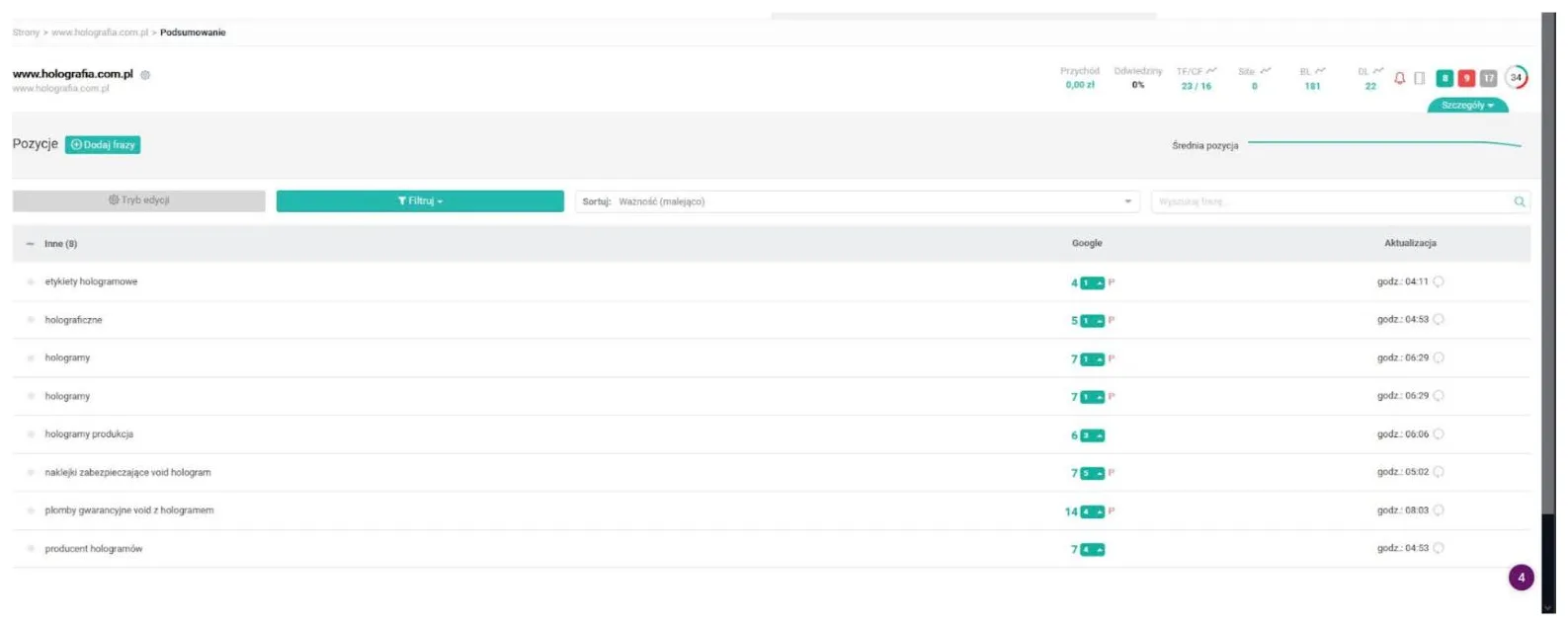
In Search Console open Performance and look at the last 3 months. According to Google's definition, an impression is when a user saw a link to your website, and position is the average across all queries. Look at:
- which queries give the most impressions,
- where there are impressions but almost no clicks (candidates for a better title),
- whether the queries include the phrases you care about, or only the company name.
If you mainly see the company name, and not service phrases, that is a hint that the content does not answer what new clients are looking for. I described how to choose such phrases in the article how to choose keywords.
It is also worth looking at the content of the pages that have the most impressions but few clicks. Often it turns out that the title is too general or does not contain what the client is looking for. Fixing one title takes a few minutes and gives a quick test of whether the direction is right.
Step 6 (5 minutes): content and the business listing
Read the home page through the client's eyes. Is it immediately clear what you do, where, and how to contact you? Does every service have a separate subpage? A well-built website generates enquiries, which I write about in a website that generates enquiries.
For a local business, also check the Google business listing: contact details, opening hours, reviews. More in the article the Google business listing for a business.
How to read the PageSpeed Insights result without getting lost
The tool shows a lot of numbers, but three are enough to begin with. See whether the Core Web Vitals assessment is passed, which indicator is the weakest and whether the problem concerns phones or computers. The lab data will point to specific recommendations, for example heavy images or scripts that block rendering. Remember that field data covers the last 28 days, so after a fix the result will change with a delay, not at once.
What this audit will not show
Honestly: 30 minutes with free tools is a review of the basics, not a full analysis. You will not check this way who links to your website, what your competitors' pages look like, or whether the structure of the site is well thought out. Nor will you learn whether the content answers clients' real intentions. It is good to repeat such a review after bigger changes to the website, for example after a rebuild, a change of addresses or the addition of new subpages. Then you will quickly catch blocks before they do harm.
How to record the results so that the audit makes sense
A review alone will change nothing if it ends with impressions. Make a simple table with four columns: area, what I found, how serious, who will fix it and when. Add the date of the audit and screenshots from Search Console and PageSpeed Insights. In a few weeks you will compare the same screens and see whether the fixes made a difference. That way you do not have to guess, you look at your own data.
If you do not understand an item, do not fix it blindly. Write down the question and come back to it after checking Google's documentation or after talking to a specialist.
How to assess the result and where to start
After the audit you have a list of problems. Put them in order:
- Indexing blocks (noindex, robots.txt, server errors): fix them straight away.
- Important subpages missing from the index: check the cause in the indexing report.
- Repeated or generic titles: fix them on the key subpages.
- Slow loading: start with the biggest images and unnecessary scripts.
- Content not matched to phrases: plan new or extended subpages.
Such a self-check does not cover everything, for example external links or competitor analysis. If you want me to go through it with you, see website SEO or write through the contact form. I will tell you what to fix first, without promising positions in the results. I described what the whole work costs in how much website SEO costs.
Frequently asked questions
How do I check whether my website is on Google?
Type site:yourdomain.com into Google. If you see results leading to your website, it is in the index. The Page indexing report in Search Console gives a more detailed picture.
Which SEO audit tools are free?
Google Search Console, PageSpeed Insights, the Rich Results Test and the site: operator in the search engine. They are enough for a basic review.
What Core Web Vitals values are good?
According to web.dev, good values are LCP up to 2.5 s, INP up to 200 ms and CLS up to 0.1, measured at the 75th percentile of visits.
Does every subpage have to be in the index?
No. Google notes that you should not expect all addresses to be indexed, only canonical pages. What matters is that the subpages that matter to your business are in the index.
When is it worth commissioning an audit from a specialist?
When, after a self-review, you do not know what is causing the problems, or when you need competitor and link analysis. A self-run checklist covers only the basics.
Sources

Author
Piotr Babczyński
I help businesses win customers online: SEO, Google and Meta ads, automation and AI. I work from Szczecin, Poland, and remotely. I write about what I test on real projects.
- 30 years in IT
- SEO and Google Ads
- AI implementation
- #SEO audit
- #Search Console
- #PageSpeed
- #checklist