
In short
- Google Business Profile is free and appears in Maps and in local results.
- Google ranks local results by relevance, distance and prominence; a position cannot be bought.
- Name, address and phone number must be the same in the profile, on your website and in directories.
- A business that travels to customers should remove its address and specify a realistic service area.
- Reviews must not be bought or exchanged for discounts; asking for honest ones is fine.
Table of contents (12)
- What the profile is and where it appears
- Step 1. Verification and owner rights
- Step 2. Primary and additional categories
- Step 3. Services and products
- Step 4. NAP details consistent with your website and directories
- Step 5. Opening hours and service area
- Step 6. Photos and posts
- Step 7. Reviews and replies
- What else to avoid
- Connect the profile with your website
- Where to start this week
- Frequently asked questions
A Google Business Profile is a free listing that appears in Maps and in search results when someone looks for a service nearby. For many small businesses it is the first place where a customer sees your name, phone number and reviews, before they ever open your website. Below I describe seven steps, in the order in which I carry them out for clients.
What the profile is and where it appears
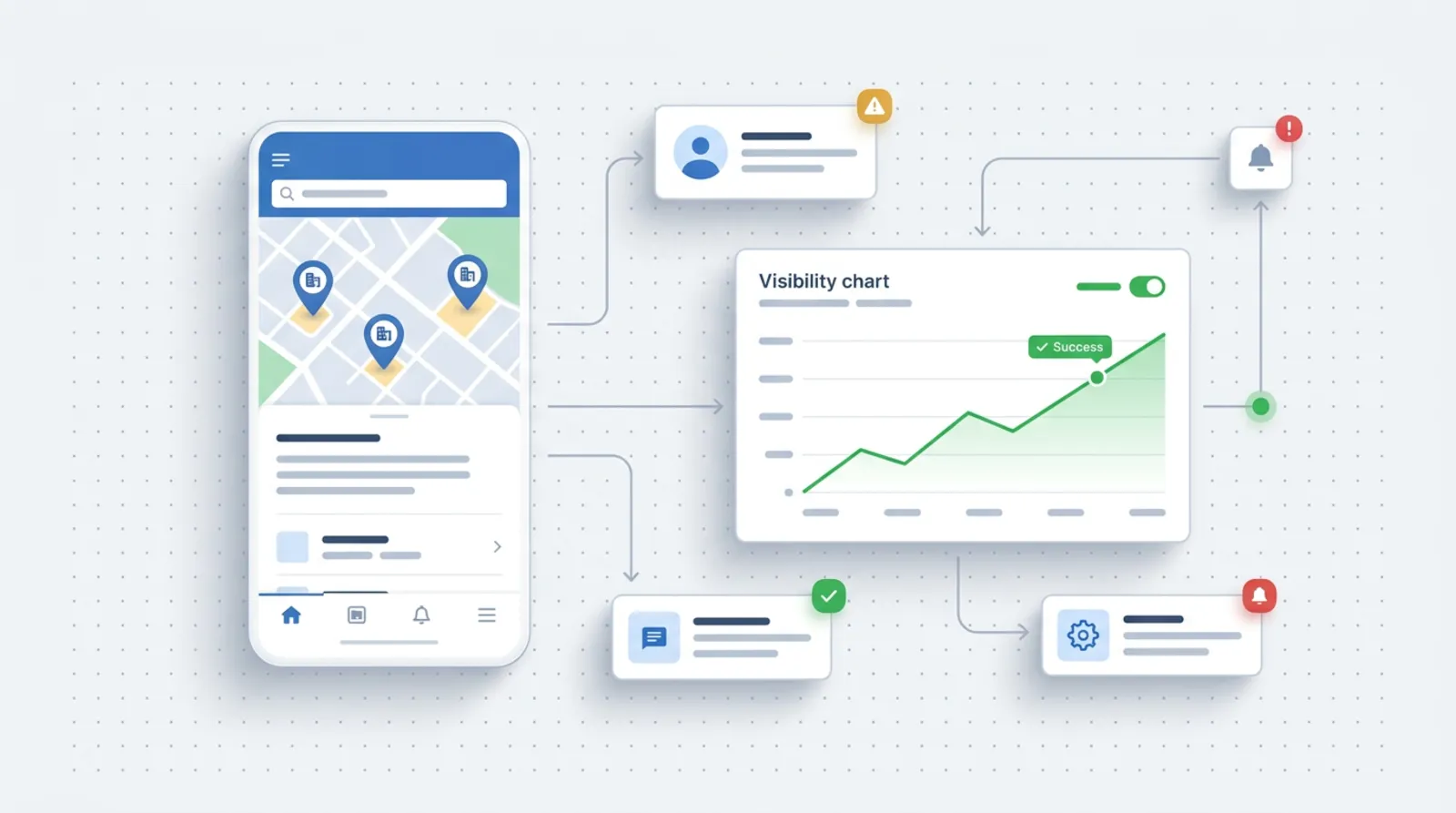
The official name is Google Business Profile (formerly Google My Business). It is free and appears in Google Maps and in local results, that is, in the block with a map above the ordinary results, or in the panel on the side when you type in the name of a company.
Google ranks local results by three factors: relevance, distance and prominence. You cannot change the distance, but you can influence the other two. Google also states that a position in local results cannot be bought or changed by hand.
From practice: Most often I see profiles that were set up "in a hurry" at some point and never completed. Simply filling them in fully often gives more than any advanced action.
Step 1. Verification and owner rights
First make sure that you are the one who manages the profile. Verification confirms to Google that you have the right to represent the business, and an unverified profile has limited options.
Check whether a profile for your business already exists. Often it was created by someone from outside, a former employee or a previous agency. In that case do not create a second one; take over the existing one. Two profiles for the same business confuse customers, and Google's rules provide for one profile per location.
Also make sure the owner account is assigned to the business and not to one employee's private mailbox. When that person leaves, recovering access can be a tedious process.
Step 2. Primary and additional categories
The category tells Google what you do, and it strongly affects which searches you appear for. Choose one primary category that describes your core business most precisely.
Add additional categories only for what you actually do. A plumber can add a category related to heating if they carry out such work. Do not add categories "just in case", because they blur the message.
A good method: type into Google the phrase you want to be found for and look at which categories the businesses at the top of the results have. That information is visible in their profiles.
Step 3. Services and products
Here, describe what you sell in the customer's own words. Instead of "performance of installation works" write "heat pump installation". Each service can have a short description and, where it makes sense, a price.
Do not enter prices if they depend on the scope of work. It is better to write that a quote is given after an inspection than to state an amount that sets expectations too low or too high.
Step 4. NAP details consistent with your website and directories
NAP stands for name, address, phone. They should be written identically in the profile, on your website, in the footer, on social media and in business directories.
| Element | Where to check | Common mistake |
|---|---|---|
| Name | Profile, website, invoices | A different version of the name in each place |
| Address | Profile, footer, directories | "ul." in one place, missing in another; an old address |
| Phone | Profile, website, directories | An old number in a directory |
| Website | Profile | A link to an outdated subpage |
Go through these places once, and then again after every change of address or number. Contradictory data is one of the more frequent reasons why a profile does not show up the way it should.
Step 5. Opening hours and service area
Set your opening hours precisely, including public holidays and days when you are unavailable. A customer who turns up at a closed premises will usually leave a bad review. When you change your hours for a holiday, do it in advance, and when you are back, restore the normal schedule.
If you travel to customers (a renovation crew, a repair service, a photographer), you are a service-area business. According to Google's rules, if you do not serve customers at your business address, remove the address from the profile and specify a service area. The area should be realistic: towns you actually travel to, not the whole of Poland. A service-area business can have only one profile for the area it serves.
If you receive customers at your premises and also travel to them, you can show both the address and the service area.
Step 6. Photos and posts
Add photos of the entrance, the interior, the team, completed work and products. Ideally your own, current, without stock photos. A customer wants to see where they will end up and who will serve them.
Treat posts in the profile as short news items: a promotion, a new service, a change of hours. They do not have to be frequent, but the profile should not look abandoned.
From practice: Phone photos taken in good light are usually enough. It matters more that they show the real business than that they are perfect.
Step 7. Reviews and replies

Reviews affect prominence, and the owner's replies show that you care about your customers. Reply to all of them, including critical ones: calmly, factually, without accusations and without revealing the customer's data.
You can collect reviews by asking customers once a service is completed. You can send a direct link to the review form in a message or in an email after the job is done.
What to avoid, according to Google's rules:
- offering a discount, a gift or payment in exchange for a review or for removing a negative one,
- buying reviews and creating multiple accounts from which "friends" leave ratings,
- pressuring customers to leave a rating on the premises,
- choosing whom you ask for a review so as to filter out dissatisfied customers.
You may encourage reviews that describe a real experience, without influencing the rating.
What else to avoid
The profile name should be the same as your business name in real use: on your sign, website and documents. Google does not allow advertising add-ons, opening hours, phone numbers or web addresses in the name. Stuffing in phrases such as "Plumber Szczecin cheap 24h" can end with the profile being suspended.
Do not give an address at which you do not run your business either (a virtual office, a friend's address). That violates the rules and risks losing the profile. You will find the full, current wording of the rules in Google's help pages; the links are at the end of the post.
Connect the profile with your website
The profile leads to your website, so the website must answer what the customer saw on the map. The link from the profile should point to the relevant subpage, for example a service page or a branch page, and not always to the home page.
On the website, put the same NAP details as in the profile, a map with directions and reviews. A separate subpage for each service and town works well, if you really operate there. This is already part of local SEO, which I describe in my SEO offer. I discuss the costs of such work in the article how much SEO costs, and whether to choose ads or SEO at the start in the article Google Ads or SEO.
Where to start this week
Start with the things that cost nothing but an hour of work:
- Check whether the profile exists and whether you have access to it.
- Set the right primary category and add only the additional ones you need.
- Compare the name, address and phone number in the profile, on your website and in directories.
- Fill in the hours, services and service area.
- Add a few photos of your own.
- Reply to all the reviews that are still waiting.
- Ask a few recent customers for a review, without any incentives.
If you would rather I looked at your profile, write to me. I will check it free of charge and point out what to fix first.
Frequently asked questions
Is a Google Business Profile paid?
No, Google Business Profile is free. You pay only if you hire someone to manage it or you run ads separately.
Can I have a profile without an address?
Yes, if you do not serve customers at your business address. According to Google's rules you then remove the address and specify a service area, that is, the towns you travel to.
How quickly will results appear after I complete the profile?
It depends on the competition in your area, your industry and the current state of the profile. I do not give a timeframe, because nobody can honestly promise one; it is worth watching the changes in the profile's statistics.
What should I do about a negative review?
Reply calmly and factually, without revealing the customer's data. If the review breaks Google's rules, you can report it for removal; genuine criticism cannot be removed.
Can I ask customers for a review?
Yes, you can encourage reviews that describe a real experience. You must not offer rewards, ask only satisfied customers or pressure the customer on the premises.
Sources

Author
Piotr Babczyński
I help businesses win customers online: SEO, Google and Meta ads, automation and AI. I work from Szczecin, Poland, and remotely. I write about what I test on real projects.
- 30 years in IT
- SEO and Google Ads
- AI implementation
- #Google Business Profile
- #local SEO
- #reviews
- #Google Maps