
In short
- The 3-2-1 rule: three copies, two different media, one copy off-site.
- Against ransomware, add an offline or immutable copy that cannot be encrypted.
- Cloud synchronisation is not a backup, because deletion and encryption synchronise too.
- A backup has to be test-restored, and disks with personal data should be encrypted and disconnected after the backup.
Table of contents (8)
A business backup is the one thing that saves you when a disk dies, someone deletes a folder or ransomware encrypts the computers. Most small businesses have some kind of backup, but rarely know exactly what is in it and whether it can be restored. Below I describe the 3-2-1 rule, its newer version against ransomware, and simple setups you can build without expensive hardware.
The 3-2-1 rule in a business backup
The 3-2-1 rule says: three copies of the data, on two different media, with one of them off-site. The original on the computer counts as the first copy.
In practice it looks like this:
- Working data on a computer or server.
- A local copy on another medium, for example an external disk or a NAS.
- An off-site copy, for example in the cloud or on a disk kept in another place.
Two different media protect against the failure of one type of device. An off-site copy protects against theft, fire and flooding, because then both the computer and the disk lying next to it are lost.
From practice: The most common arrangement I see in small businesses is one external disk permanently plugged into the computer. That is one copy on the same desk, not the 3-2-1 rule.
Newer variants: an offline and an immutable copy
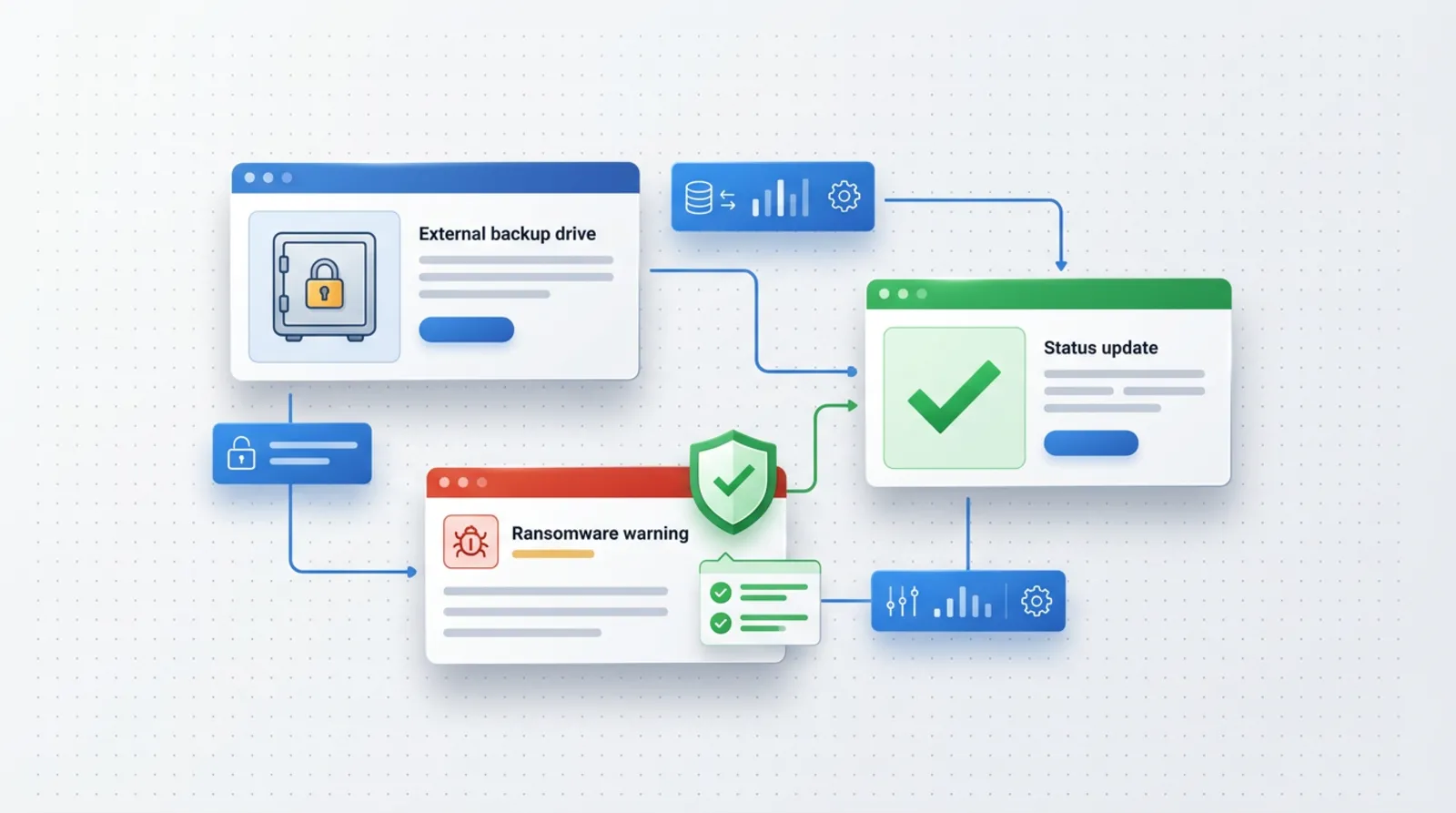
Ransomware can encrypt or delete any copy the computer has access to. That is why modern recommendations add to 3-2-1 a copy that is disconnected from the network or one that cannot be changed.
The American agency CISA, in its #StopRansomware guide, recommends keeping offline and encrypted backups and regularly checking that data can be restored from them. The reasoning is simple: many strains of ransomware look for accessible backups and destroy them. Their documents are worth reading before you choose a solution.
What this means for a small business:
- An offline copy: a disk that you disconnect from the computer after the backup and put away.
- An immutable copy: a cloud service that, for a set time, does not allow saved versions to be deleted or overwritten. Whether this feature is available depends on the provider and the plan.
You do not need both. One of them, combined with the classic 3-2-1 rule, already gives clearly better protection than copies that are permanently connected.
Cloud synchronisation is not a backup
Google Drive, OneDrive and similar services synchronise folders, they do not make backups. If you delete a file on the computer, it disappears from the cloud as well. If ransomware encrypts the files, the encrypted versions synchronise in exactly the same way.
The recycle bin and versioning help partly. Google Drive keeps older versions of files, but the documentation says that a version may be permanently deleted after a certain time or after a limit of newer versions is exceeded. Do not build all your protection on such a mechanism. When hundreds of files are encrypted, restoring them one by one can also be very tedious.
The solution is simple: treat synchronisation as a convenience for work, and the backup as a separate mechanism. Preferably one in which an ordinary user cannot delete the history.
What to back up in a small business
Back up everything that would cost you time or money to recreate from scratch. Start with a list, because it often turns out that important data lies in places nobody remembers.
- Documents and contracts from employees' computers.
- Accounting: the files of the accounting program and of invoices. If you use an online program, check with the provider how export works and what backups they keep.
- Email: mailboxes, especially when you keep email on a company mail account without an archive.
- Website: files and the database. Hosting usually makes its own backups, but make a separate one that the hosting does not control.
- Photos, projects and graphic or video materials, often the largest in volume.
- Configurations: settings of the router, the server and the domain, and the list of passwords and accounts in a password manager. Without them, getting the business back after a failure takes much longer.
From practice: A copy of the website kept only at the hosting is a copy on the same account, which can be blocked or hacked. A separate copy downloaded every so often solves that problem.
The table below helps assign responsibility. Choose the frequency to match how much work you can afford to lose: if a day of work is too much, a weekly backup is not enough.
| Data | How often | Where | Who checks |
|---|---|---|---|
| Documents and contracts | Daily, automatically | Local disk and cloud with versioning | A designated person in the business |
| Accounting | After every major change and weekly | Offline disk and cloud | The owner or the accountant |
| Daily or a continuous archive | Cloud or a separate archive | The IT administrator | |
| Website and database | Before changes and on a schedule | Hosting and a separate copy | The website's maintainer |
| Photos and projects | After a project is finished | External disk and cloud | The project owner |
| Configurations and access details | After every change | An encrypted file in two places | The owner |
Simple setups without costly hardware

A good setup depends on the number of people and the amount of data, not on the price of the hardware. Below are two arrangements that work well in small businesses.
One or two people
A computer, an external disk and a cloud copy with versioning. The copy to the disk is made automatically on a schedule, and when it finishes you disconnect the disk. Such a disk is an offline copy. The cloud copy works in the background and is the third one, off-site.
Several people
Keep shared data on a NAS, which is a small file server in the office. A NAS on its own is not a backup, because it is still one device in one place. Add a copy to the cloud and a removable disk that you disconnect every so often and take out of the business. Also make sure that employees' ordinary accounts do not have permission to delete backups.
In both cases, set up automation. A backup that someone has to remember to make will eventually stop being made. As with other repeatable tasks that I write about in the text 7 processes to automate in a business, a schedule does it better than a person.
Restore test, encryption and GDPR
A backup whose restoration has not been checked is only an assumption. I recommend a restore test once a quarter: pick a few files, a database or a whole mailbox and restore them in another place. If the business is very small, a less frequent test is still better than none. Choose the frequency to match how important the data is.
Three rules worth applying right away:
- A restore test on a schedule, with a record of who did it and what worked.
- Encrypting backups, especially disks taken out of the business. A lost unencrypted disk is a data leak.
- Disconnecting the disk after the backup, so that ransomware cannot reach it.
Backups contain personal data of clients, employees and contractors, so GDPR applies to them in the same way as to data on computers. The regulation requires measures ensuring an appropriate level of security, which covers the confidentiality, integrity and availability of data. The European Data Protection Board, in its guide for small businesses, describes the security of personal data, including backups and encryption. I write more broadly about personal data in new tools in the text AI and GDPR in a business.
Where to start this week
You do not need to buy anything to start. A few concrete steps are enough:
- List where the business data lies, and mark the data without which you cannot work.
- Check how many copies you have today and whether any of them is off-site.
- Set up an automatic copy to an external disk and a cloud copy with versioning.
- Encrypt the disks with the copies and decide who disconnects them when the backup is done.
- Put the first restore test in your calendar.
If you prefer someone to check this for you, as part of IT support for businesses I carry out a backup review: what is copied, where, whether it can be restored and what is worth improving. You can also write to me and describe what your business looks like.
Frequently asked questions
Is an external disk that is permanently connected enough as a backup?
No. Such a disk is exposed to the same threats as the computer, including ransomware, theft and fire. Disconnect it after the backup and keep a second copy off-site.
Is a copy on Google Drive or OneDrive a backup?
Ordinary synchronisation is not. Deleting or encrypting a file carries over to the cloud. Versioning and the recycle bin help, but they have limits, so add a separate copy.
How often should I check that the backup works?
I recommend a restore test once a quarter as a starting point. With important data, do it more often. What matters is restoring real files, not just checking that the backup ran.
Are backups subject to GDPR?
Yes, if they contain personal data. They should be protected like the source data, for example encrypted and available only to authorised people.
Does my hosting make a copy of my website, and is that enough?
Many providers make backups, but the scope and the time they are kept differ. Check the provider's terms and download an additional copy that you keep separately.
Sources

Author
Piotr Babczyński
I help businesses win customers online: SEO, Google and Meta ads, automation and AI. I work from Szczecin, Poland, and remotely. I write about what I test on real projects.
- 30 years in IT
- SEO and Google Ads
- AI implementation
- #backup
- #ransomware
- #GDPR
- #IT support