
In short
- The current program version is Płatnik 10.02.002, and the latest metryka is 334, announced by ZUS for 30 October 2026.
- Metryka 334 introduces an encryption key, an administrator recovery key, a database conversion and a password policy.
- Before updating, back up the database and write down its location and password. On a network each workstation has to be gone through separately.
- When the update stalls, ZUS recommends the manual metryka v.334 file or P2StartFix2.exe, and for a TSL error, changing the list address by hand.
Table of contents (10)
- The latest Płatnik update: version, metryka and dates
- What the Płatnik update (metryka 334) changes
- Before you click "Aktualizuj": a checklist
- Installation and first launch step by step
- The most common problems after a Płatnik update and how to solve them
- A backup of the Płatnik database
- Is ZUS phasing out Płatnik?
- When to call an IT person and when to call ZUS
- Where to start and how I can help
- Frequently asked questions
A Płatnik ZUS update (Płatnik is the Polish payroll and insurance reporting program used to send documents to ZUS, the Polish social insurance institution) is today mainly "metryka 334" (the update file with dictionaries and components) for program version 10.02.002, which ZUS announced for 30 October 2026. The program version itself has not changed, but the metryka introduces a new encryption key, a database conversion and a password policy. That is why after the update some companies see unusual windows, and some cannot connect to the database or send documents. Below I describe what ZUS officially states, how to prepare for the update and how to fix the most common problems after it.
All the facts about the program are based on announcements and documents from zus.pl. Where I describe something from my own practice or from users' reports, I say so clearly.
The latest Płatnik update: version, metryka and dates
On the ZUS download page the current program is Płatnik 10.02.002. The installer is 155 MB, and next to it is a separate file that updates dictionaries and components (the so-called metryka). As of 9 November 2026 it is metryka 334. Source: the Płatnik program download page.
What follows from the ZUS announcements:
- 30 October 2026, 18:00 to 23:30: the planned deployment of metryka 334 for version 10.02.002. The metryka is to be downloaded automatically during the update, and ZUS notes that a database conversion will be required (ZUS announcement).
- 21 October 2026: deployment of the earlier metryka 328 (the same program version number, 10.02.002).
- 23 January 2026: metryka 320, signed with a new certificate. ZUS wrote that it contains no changes of substance (ZUS announcement).
- 26 January 2026: from this day a new ZUS certificate applies in communication with ZUS (ZUS announcement).
Is the update mandatory? In the announcements I read, ZUS gives no separate deadline for metryka 334. It does say that the metryka is downloaded automatically during the update, so in normal use the program will offer it anyway. If you do accounting and send documents, there is practically no point in putting it off. It is worth doing it deliberately, after a database backup, rather than in a rush before the filing deadline.
There is one thing I could not establish from ZUS sources: what exactly metryka 334 changes in substance in documents and forms. The official description of the changes concerns the security of the program and I describe it below. If someone tells you about other changes, ask for a source on zus.pl.
What the Płatnik update (metryka 334) changes
ZUS has published a document titled "Zmiany w programie Płatnik wprowadzane metryką 334" (Changes in the Płatnik program introduced by metryka 334) (PDF from zus.pl). All the changes concern the administrator's work and security:
- The Kreator klucza szyfrowania sekretów (the secrets encryption key wizard) starts on the first launch after the update.
- The administrator's access recovery key. The program tells you to generate it and keep it in a safe place.
- Database conversion, that is, adapting the database structure to the new version.
- The password policy. By default the administrator's password must be at least 12 characters, including a lower-case and an upper-case letter, a digit and a special character. If the current password does not meet this, the program will force a change.
- New items in the Administracja menu (Administration): password policy settings, encryption key settings, regenerating the recovery key and starting the migration of user passwords.
- Access recovery for the administrator account from the login window.
- Security-related entries in the Dziennik operacji (operations log).
In the password policy you can change the requirements: the minimum password length ranges from 12 to 24 characters, and the password must require at least two categories of characters.

From practice: What causes the most stress is not the changes themselves, but the moment when the new windows appear without warning, in the middle of a filing day. That is why it is best to do the update when nobody is sending anything.
Before you click "Aktualizuj": a checklist
On the download page ZUS says plainly: before downloading a new version, remember to back up the database and make sure you know its location and access password. This is the most important rule. The rest of the list comes from the program's requirements and from my practice.
- A database backup. Make it before the update, following the ZUS instructions for Access or for SQL (described in the backup section below).
- The location and password of the database. Write down where the database is (an MDB file or an SQL server) and what the password is. The conversion will stop without them.
- The operating system. According to ZUS's requirements for version 10.02.002, the program supports Windows 10, Windows 11, Windows Server 2016 and 2019 (64-bit). ZUS warns that on systems no longer supported by the manufacturer, problems with the program's operation may occur (system requirements).
- Components. The same page lists, among others, .NET Framework 4.0, the WSE 3.0 package (needed for electronic communication with ZUS) and the database engine: MS Jet 4.0 for Access or SQL Server (from 2005 to 2019, including Express editions).
- Disk space. ZUS states 1 to 2 GB. Leave some spare, because the conversion creates a copy of the database.
- An account with privileges. For the first launch you need an account with Windows administrator privileges and an administrator account in Płatnik itself.
- The program closed on all workstations. For multi-workstation work, ZUS requires other users of the same database to close Płatnik for the duration of the conversion.
- The certificate and the reader. Check that the qualified signature card and reader work before you start sending documents. The requirements for qualified certificates are set by their issuers.
- The administrator password. Think in advance about a new password that meets the password policy, and have somewhere to store the recovery key (a USB stick, a password manager, a safe).
Installation and first launch step by step
ZUS describes this in the document "Pierwsze uruchomienie programu Płatnik po aktualizacji do najnowszej wersji (metryka 334)" (First launch of the Płatnik program after updating to the latest version, metryka 334) (PDF from zus.pl). Below is a summary of that process in my own words.
A single workstation
- Back up the database (see below).
- Start Płatnik as administrator: right-click the icon, "Uruchom jako administrator" (Run as administrator).
- Log in with your existing password. At this stage do not use the "Odzyskiwanie dostępu" (Access recovery) button.
- In the Kreator klucza szyfrowania sekretów, choose to create a new key and add the Windows users who are to work in the program. Windows administrators are added automatically.
- Save the generated recovery key in a safe place. With it you will regain access if you lose the administrator's password.
- Go through the database conversion: "Dalej" (Next), wait for the backup and the conversion, then "Połącz" (Connect).
- If the program asks you to change the password, enter a new one that complies with the password policy.
If the update does not download from within the program, ZUS offers two ways out. The first is the P2StartFix2.exe file from the download page. The second is loading the metryka file manually, described below under the problems.
Working on a network and on several computers
ZUS describes "przypadki szczególne" (special cases). Several Windows users on one computer are configured in the same way as a single workstation. In distributed work, that is, on different computers, the administrator must log in at least once on each of them to generate the encryption key there. The key is local to the computer, although access to it can be granted to a domain user.
In practice this means one thing: after an update on a network it is not enough to update one computer. Each workstation has to be gone through separately. You do the database conversion once, on one machine, when everyone else has the program closed.

The most common problems after a Płatnik update and how to solve them
The table below collects the problems described in ZUS announcements and those I often see in companies. In the "Source" column I note where the information comes from.
| Problem | Probable cause | What to do | Source |
|---|---|---|---|
| The program asks for a database conversion | The new metryka changes the database structure | Make a backup, click "Dalej" (Next), then "Połącz" (Connect) | ZUS |
| A message about an incompatible database version | An ordinary user is logged in, not an administrator | Log in as administrator and carry out the conversion | ZUS |
| The automatic update does not run or takes very long | A problem with downloading the data | Load the metryka v.334 file manually | ZUS |
| The metryka update ends with an error | A problem with the metryka update process | Run P2StartFix2.exe as a Windows administrator | ZUS |
| An error with the TSL list or certificate verification | Difficulties downloading the TSL lists | Change the TSL list address manually | ZUS |
| Nothing is sent to ZUS | An old certificate, TSL, no WSE 3.0, the reader | Download a new certificate, check TSL and the components | ZUS |
| No access to the key on another workstation | The key is local to the computer | Log in there as administrator and grant access to the users | ZUS |
| The payers' data has disappeared | The program connected to a different (empty) database | Check the database settings, do not overwrite anything, return to the right one | practice |
| The program runs slowly | Computer resources, a database on the network, antivirus | Check the hardware, the connection to the database and the antivirus exceptions | practice |
The program does not start or does not download the update
Start with the simplest thing. Close Płatnik, run it as administrator and check whether the system is supported (Windows 10, 11 or Server 2016/2019). If the update from within the program does not go through, ZUS recommends downloading P2StartFix2.exe and running it on an account with Windows administrator privileges, with Płatnik closed. At the end you confirm two windows with the OK button (instructions for running P2StartFix2 on zus.pl).
The second way, recommended by ZUS in its announcement of 2 November 2026 when the automatic update drags on or fails, is loading metryka 334 manually (ZUS announcement):
- When the program offers to download the update, click "Nie" (No).
- From the download page, download the file "Plik aktualizujący słowniki i komponenty dla programu w wersji 10 (metryka.xml) v.334 (zip)" (the file updating dictionaries and components for the program in version 10).
- Unpack it into a directory of your choice.
- In the program, choose Administracja, then "Aktualizuj komponenty programu - z dysku..." (Update program components - from disk...).
- In the window "Aktualizacja programu i danych płatnika" (Update of the program and payer data), click "Pobierz aktualizację" (Download update) and point to the file "metryka_X.xml".
- When it finishes, start Płatnik again.
A database conversion error
After the update you may see a message that the database requires conversion to the form required by the current version of the program. This is normal and expected. ZUS describes what to do: click "Dalej" (Next), wait for the backup and the conversion of the structure, and in the next window click "Połącz" (Connect). The database will then be set as active (ZUS guide on database conversion; it is an older article from 2017, but it describes the same message).
The second message from that guide says that the database version is incompatible with the program version and the connection to the database failed. ZUS points to a simple cause: you logged in as an ordinary Użytkownik (User), who has no rights to carry out the conversion. The solution is to log in as Administrator.
If the conversion fails, do not try it repeatedly in the dark. Check whether someone else has Płatnik open on the same database, whether you have rights to the file or the SQL server and whether the database password is correct. Only then try again. The backup made before the update is then your lifeline.
No access to the database or the key on the network
After the update, a user who has been working normally until now may be unable to get to the data. According to the ZUS description, to work in the program the user must be added to the users of the encryption key. The administrator does this in the Kreator, and later in the Administracja menu, in "Ustawienia klucza szyfrowania" (Encryption key settings). When working on many computers, remember that the key is local to the computer (see above).
Users on networks also report that it helps to check in Windows the permissions to the key for domain and local accounts. These are reports from users' practice, not a ZUS instruction, so treat them as a hint for an IT person to check, not a ready recipe.
A signature, certificate and TSL list error
There are two separate matters here.
The ZUS certificate. From 26 January 2026 a new certificate is used in communication with ZUS. The program can download it automatically: Przekaz, Ustawienia przekazu elektronicznego, the Certyfikaty tab, "Usuń z konfiguracji", and then "Pobierz" and "Zapisz" (Transmission, Electronic transmission settings, the Certificates tab, "Remove from configuration", then "Download" and "Save"). The certificate is also available at the address given in the ZUS announcement.
The TSL list. On 6 November 2026 ZUS published an announcement about difficulties downloading TSL lists (lists of trusted certification service providers) or a certificate verification error. ZUS's recommendation is as follows (ZUS announcement):
- Log in to Płatnik.
- Choose Przekaz, Ustawienia przekazu elektronicznego, the TSL tab, the field "Adres listy TSL" (TSL list address).
- Enter the address: https://ec.europa.eu/tools/lotl/eu-lotl.xml (in line with the European Commission document).
- Click "Aktualizuj", "Zapisz" and "Ok" (Update, Save and OK).
A separate matter is your qualified signature. ZUS notes that the issuers of qualified certificates and the providers of card software define their own system requirements, which may additionally limit operation. If the signature stopped working only for you, check the reader, the card drivers and the certificate's expiry date.
Płatnik does not send documents to ZUS
Before you assume that "ZUS is down", check in order, starting with the most common causes:
- whether the ZUS certificate is current (since 26 January 2026 the new one applies),
- whether the TSL list downloads correctly (see above),
- whether the computer has the WSE 3.0 package, required for electronic communication, and a supported Windows system,
- whether the reader and the qualified signature card work,
- whether the metryka update finished to the end, and did not hang halfway.
If everything looks fine and sending still does not go through, write down exactly what the program window shows (ideally take a screenshot) and go to the section on contacting support.
The payers' data has disappeared
This is usually not a data loss, but a connection to a different database. The Płatnik installer can take over the settings of the previous version, including the database settings, but if you installed the program from scratch or on a new computer, it may point to an empty database. In the Administracja menu, in the database settings, check which database the program is connected to and where that file or server is.
The most important rule: do not create a new database and do not overwrite anything until you have found the right one. An Access database file (MDB) can be found by its modification date and size. I base this point on my own practice, not on a ZUS announcement.
The program runs slowly
ZUS describes slow downloading of updates (hence the recommendation of the manual file). Slow work of the program itself after the update usually has other causes: the database sits on a slow network share, the computer has little memory, the antivirus scans the database file on every write, or several people work on one Access file. ZUS's requirements are a minimum, and in an office with several workstations it is worth having some margin. If the company is growing, moving from Access to SQL Server Express can be a sensible step, but it is a separate decision that is worth making with an IT person and after a backup.
A backup of the Płatnik database
Płatnik stores the insured persons' data and the accounting documents. Losing the database is not only an inconvenience, but also a risk of trouble with filings. That is why a backup before every update is mandatory.
ZUS provides instructions for making a backup on the download page:
- For Access: in the program connected to the database, choose Administracja, ustawienia bazy danych, baza, migracja bazy danych (Administration, database settings, database, database migration). Point to a location outside the Płatnik program directory, a database name without Polish characters and a password (also without Polish characters). ZUS recommends adding the program version number without dots to the name, for example 10_01_001, because a conversion is carried out when copying.
- For SQL Server: the same migration wizard, choosing the Microsoft SQL Server database type, a unique database name and the server details. A backup can also be made in SQL Server Management Studio.
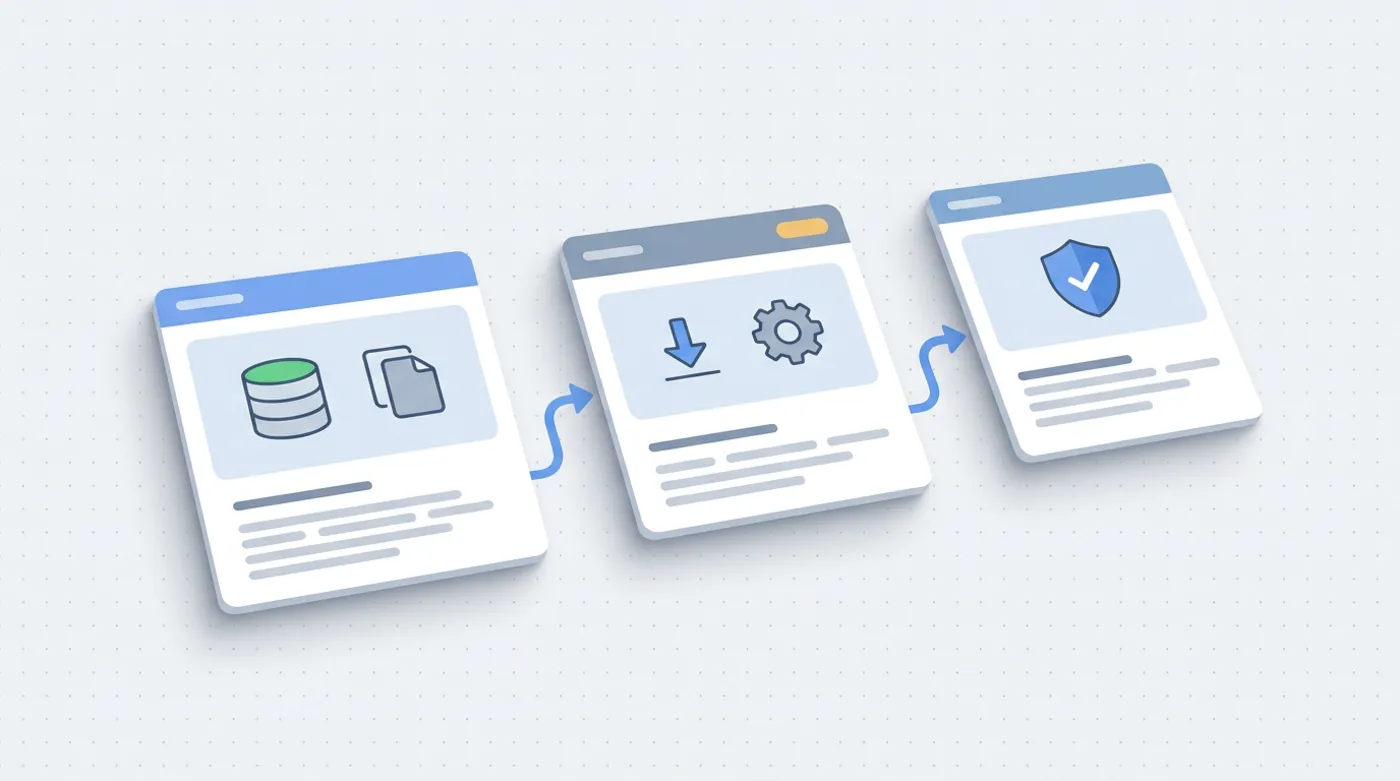
Remember the rule I describe in a separate post: a backup that sits next to the original on the same disk is not protection. Copy the database backup file to a second medium and outside the company. You will find the details in the article backup in a small business: the 3-2-1 rule. After the update do one more thing: check that all payers and insured persons are in the new database, before you delete the old backup.
From practice: I treat a database backup that has never been restored as a backup that does not exist. From time to time it is worth checking that it can be opened on another computer.
Is ZUS phasing out Płatnik?
In the ZUS announcements I read, I found no announcement of phasing out the Płatnik program and no date for a move to another solution. The download page still offers version 10.02.002, and ZUS regularly releases metryka files for it. In parallel ZUS is developing electronic services for payers in PUE/eZUS (the ZUS online portal), but that does not mean Płatnik is about to stop working.
If someone online claims that the program will disappear on a specific day, look for confirmation in an announcement on zus.pl. Without it, treat it as a rumour.
When to call an IT person and when to call ZUS
A simple division that I use:
To an IT person, when the problem is in your computer or network:
- the program does not start, the system is unsupported, components are missing,
- users on the network have no access to the database or the key,
- the database conversion stops and you do not know whether the backup is complete,
- the data has disappeared and you do not know which database the program is connected to,
- it runs slowly or sending hangs because of the antivirus, the firewall or hardware.
To ZUS, when the matter concerns accounting, documents or what you are allowed to send:
- questions about the content of documents and the rules for settling contributions,
- doubts about the formal correctness of a document you sent,
- situations in which a ZUS announcement directly refers you to contact ZUS.
The ZUS Centrum Kontaktu Klientów (Customer Contact Centre, formerly the Centrum Obsługi Telefonicznej) has the number 22 560 16 00 and the address cot@zus.pl. ZUS confirms them in the announcement on the renaming of the helpline. Check the opening hours on zus.pl, because they may change.

Before the call, prepare: the version number of the program and the metryka, a screenshot of the window with the problem, whether you work on Access or SQL, and whether it is a single workstation or a network. The call is then shorter.
Where to start and how I can help
If you have Płatnik and have not yet gone through metryka 334, do it in this order:
- Choose a moment when nobody is sending documents.
- Make a database backup following the ZUS instructions and copy it to a second medium.
- Write down the location and password of the database.
- Start Płatnik as administrator and go through the key wizard and the conversion.
- Save the recovery key and set a password that complies with the policy.
- On every workstation on the network, log in as administrator to generate the key.
- Check the certificate and the TSL list, and then send one test document when that is possible.
If something does not work or you simply do not want to do it yourself, I can help. One-off remote help costs from PLN 97. I will prepare the update and the database backup remotely, and check the conversion, the keys and operation on the workstations. For ongoing support of a company there is also a subscription, and you will find prices and scope in the IT support offer. If you would like to start with a short conversation, write via the contact form.
Frequently asked questions
What is the latest version of Płatnik ZUS?
According to the ZUS download page, the current program is Płatnik 10.02.002, and the latest metryka (dictionaries and components) is 334. ZUS announced its deployment for 30 October 2026. You can check the metryka number on the download page.
Do I have to update Płatnik?
In the ZUS announcements I read, I did not find a separate deadline for metryka 334. The metryka is, however, downloaded automatically during the update, so for day-to-day work and sending documents it is not worth putting off. Do it after a database backup.
What should I do when a database conversion message appears after the update?
It is an expected step. Back up the database, log in as administrator, click "Dalej" (Next), wait for the backup and the conversion, and then "Połącz" (Connect). Other users of that database must have the program closed in the meantime.
What should I do when the automatic update does not go through?
ZUS recommends manually downloading the metryka v.334 file from the download page and loading it from the Administracja menu. For problems with the update itself you can also run P2StartFix2.exe as a Windows administrator with Płatnik closed.
What should I do when Płatnik does not download the TSL list or reports a certificate verification error?
In its announcement of 6 November 2026, ZUS recommends manually changing the TSL list address in the electronic transmission settings, on the TSL tab, to the address given in the announcement. Then click Aktualizuj, Zapisz and Ok (Update, Save and OK).
Is ZUS phasing out the Płatnik program?
In the ZUS announcements I read there is no announcement of phasing out Płatnik or a date for moving to another solution. The download page still offers version 10.02.002. Check any changes in the announcements on zus.pl.
Sources
- ZUS: Wdrożenie nowej metryki programu Płatnik w dniu 30 października 2026 r.
- ZUS: Pobierz program Płatnik 10.02.002
- ZUS: Zmiany w programie Płatnik wprowadzane metryką 334 (PDF)
- ZUS: Pierwsze uruchomienie programu Płatnik po aktualizacji, metryka 334 (PDF)
- ZUS: Komunikat w sprawie programu Płatnik (2 listopada 2026)
- ZUS: Utrudnienia związane z pobieraniem list TSL (6 listopada 2026)
- ZUS: Konwersja bazy danych po pobraniu aktualizacji programu
- ZUS: Wymagania sprzętowe, wersja 10.02.002

Author
Piotr Babczyński
I help businesses win customers online: SEO, Google and Meta ads, automation and AI. I work from Szczecin, Poland, and remotely. I write about what I test on real projects.
- 30 years in IT
- SEO and Google Ads
- AI implementation
- #Płatnik ZUS
- #update
- #database
- #IT support